
Extract multiple ZIP files
How to extract multiple ZIP files at once on Windows 11
To extract several independent ZIP files at once on Windows, run a PowerShell loop to give each ZIP its own folder, use 7-Zip's Extract to menu, or select the batch in EasyUnZip. File Explorer's Extract All wizard handles one archive at a time.
Choose a method
- PowerShell: no extra download, for ordinary unencrypted ZIP files
- 7-Zip: a free right-click method, if you already use it
- EasyUnZip: one panel, for a ZIP/RAR batch with destination and file-type choices
These methods are for several separate ZIP archives. A split archive with parts such as .z01, .z02 and .zip is one archive; keep its parts together and open it with a tool that supports that split format. Do not run each part through this loop.
With PowerShell, already on Windows
Start with the steps below, or jump to the two commands. A separate folder for each ZIP is the simplest way to avoid name collisions.
Put every archive in one folder
Move the ZIP files you want to extract into a single folder. Every method below works on a whole folder at once, so this is what decides which archives are in the job and which are not.
Open PowerShell in that folder
In File Explorer, hold Shift, right-click the empty space inside the folder and choose Open in Terminal, or type powershell in the address bar and press Enter. Either way the prompt opens already pointed at the folder you are looking at.
Run one line to give every archive its own folder
Paste the Get-ChildItem line below and press Enter. Ten archives become ten folders, each named after the ZIP it came from, and nothing has to be installed first - Expand-Archive is part of Windows.
Or send them all to one folder instead
Swap the destination for a single path, as the second command below does. Everything lands together, which is what you want when the archives are parts of one set rather than ten separate things.
Check the result before you delete anything
Count the folders against the archives, and open one. Keep the ZIP files until you have. Read PowerShell's error output as well: an existing file or a failed archive can leave only part of the expected result in the destination.
The two commands, in full
Both run from the folder holding the archives, and both are one line. The first gives every archive a folder of its own, named after the archive:
Get-ChildItem -Filter *.zip | ForEach-Object { Expand-Archive -LiteralPath $_.FullName -DestinationPath (Join-Path $_.DirectoryName $_.BaseName) }
The second merges the lot into one folder:
Get-ChildItem -Filter *.zip | ForEach-Object { Expand-Archive -LiteralPath $_.FullName -DestinationPath C:\Extracted }
Expand-Archive has shipped with Windows since PowerShell 5, so it is on every Windows 10 and Windows 11 machine with nothing to install. It reads ZIP and only ZIP and does not support encrypted archives. These commands omit -Forceso existing files are not silently overwritten. If a name already exists, read the errors and check the result; some files may have extracted before the conflict. Add -Force only if you intend to replace existing files.-LiteralPath keeps brackets in archive names from becoming wildcards.Microsoft documents both options.
With 7-Zip, if you already have it
7-Zip is free, reads RAR as well as ZIP, and does this from the right-click menu. Select the archives, right-click, choose7-Zip, then Extract to *\. The asterisk is the whole feature: it means a folder per archive, named after it, which is the same result as the first command above without a terminal.
The commands below are for Command Prompt (cmd.exe), not PowerShell. They assume7z.exe is on PATH. If Windows cannot find 7z, replace it with "C:\Program Files\7-Zip\7z.exe", or the actual path where you installed 7-Zip. Keep the quotes around a path containing spaces.
The merge form takes a wildcard directly:
7z x *.zip -oExtracted
And the folder-per-archive form is a loop:
for %A in (*.zip) do 7z x "%A" -o"%~nA"
In a .bat file that becomes %%A in both places. Add-y to stop it asking about every collision, and read the next section before you do. Where 7-Zip is the better toolis written out in full.
Choose the right destination pattern
- Each archive in its own folder
- Best when the archives contain common names such as readme.txt or image01.jpg. The folder name comes from the archive name, so twelve ZIPs produce twelve clear folders.
- Everything in one folder
- Useful when several independent ZIPs contain files you want together, such as separate photo downloads. This is not the same as a multipart ZIP archive. Decide how name collisions work first, since files from different archives can share a name.
- A separate path for each archive
- Useful when the batch belongs to different projects or clients. The examples above do not assign a custom path to each archive; that needs an adapted script or a tool that lets you choose those paths together.
The collision nobody sees coming
Merging is where batches go wrong. Three archives that each contain areadme.txt produce one readme.txt, and with-Force or 7z -y they produce it silently - the command reports success, the file count looks plausible, and two files are gone. We ran exactly that while checking this page: three archives holding six files between them, merged into one folder, left four. The three readme.txt files became one, and nothing said so.
Give every archive its own folder unless you know the contents do not overlap. It costs a destination choice before you start. If a merge overwrites a needed file, keep the original archives so you can extract their copies into separate folders again.
Before merging archives into an existing folder, read how to extract without overwriting files. It covers Skip, Rename and the case where two archive names resolve to the same output folder.
With EasyUnZip, from one panel
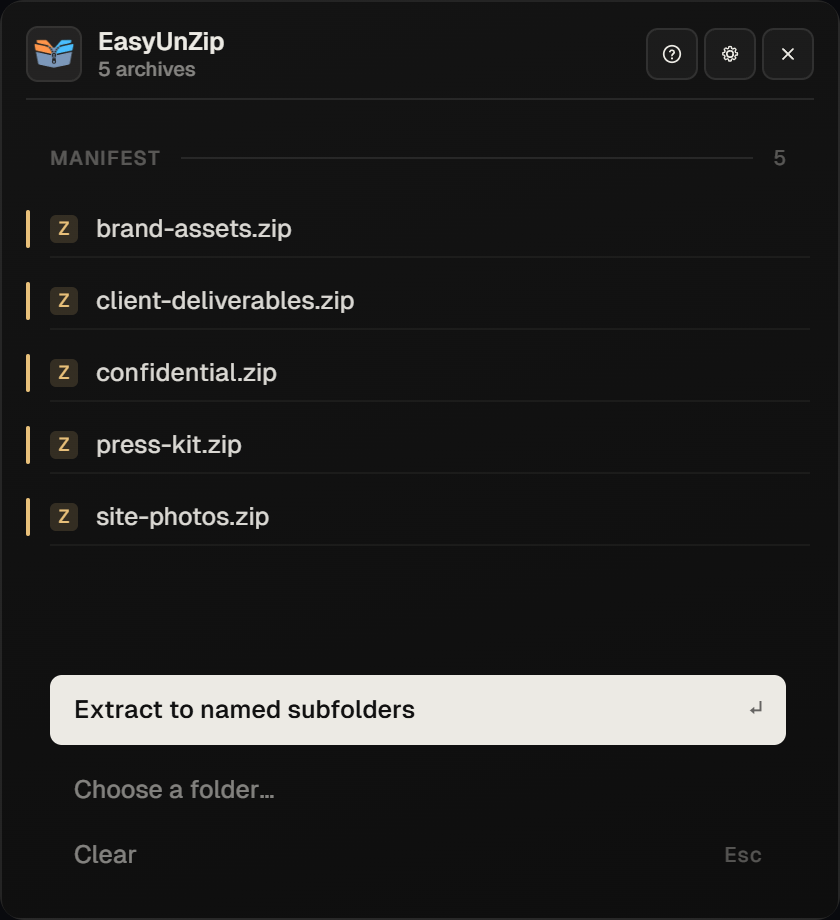
A script or another archive tool can cover these cases too.EasyUnZip puts the choices together in one panel:
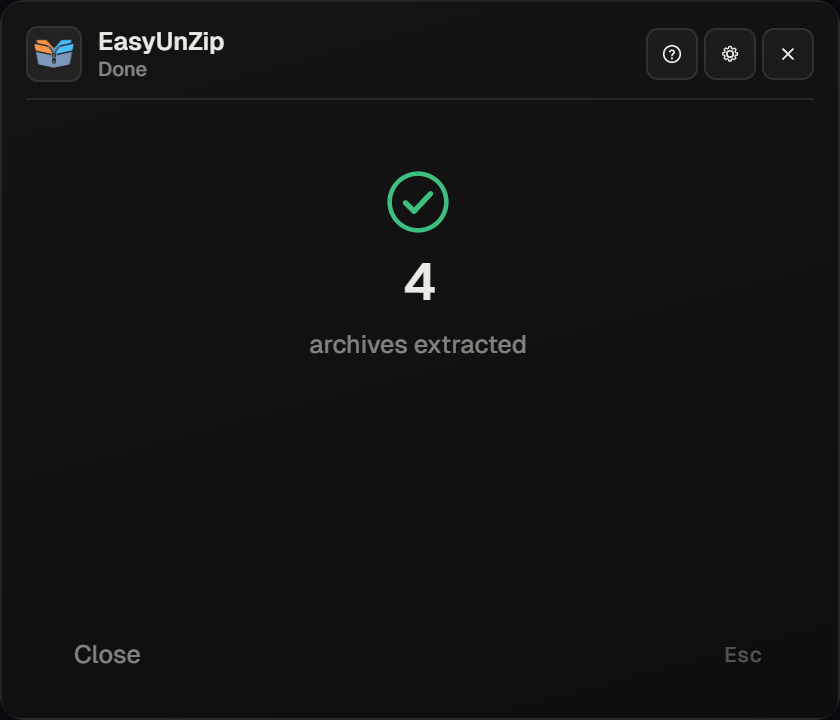
- ZIP and RAR in the same selection. Expand-Archive skips the RARs without saying so. EasyUnZip counts both and extracts both.
- An encrypted archive in the batch. Expand-Archive does not support it. EasyUnZip prompts for the password and holds it for the session only.
- A different destination for each archive. One panel, one pass, instead of one run per destination.
Select the archives in File Explorer, press Alt +E, choose one destination, a folder per archive, or a custom path for each, set the conflict rule once, and extract.It is free for 14 days. If you only need JPGs, PDFs or another type, filter the batch before extracting.
Earlier command variants, including the overwrite test below, were checked on 18 September 2026 on Windows 11 24H2, against Windows PowerShell 5.1.26100 and 7-Zip 25.01, using three test archives holding six files between them. The merge form was run deliberately to confirm the silent overwrite described above: six files in, four out. On 7 October 2026, the PowerShell examples were updated against Microsoft's documentation to use LiteralPath and omit Force by default; those updated examples have not been re-run on Windows.
EasyUnZip behaviour checked against 0.1.1's multi-archive routing tests. The shipped options are one destination, one named subfolder per archive, or a custom path per archive.
Common questions
Why does Extract All only extract one ZIP when I select several?
Because File Explorer's Extract All wizard takes one archive. Selecting ten and choosing Extract All runs the wizard against one of them and ignores the rest - it does not warn you, so it reads as a bug rather than a limit. No setting changes this. The job needs a loop, a tool that accepts a batch, or ten passes of the wizard.
Does Expand-Archive work on RAR files?
No. Expand-Archive reads ZIP only, so a folder holding both leaves every RAR behind without an error - the filter in the command simply never matches them. For a mixed batch you need 7-Zip, WinRAR or EasyUnZip, all of which read both formats.
How do I extract multiple ZIP files with 7-Zip instead?
Select the archives in File Explorer, right-click, and choose 7-Zip, then Extract to *\ - the asterisk is what gives each archive its own folder. On the command line the wildcard form merges them all into one folder, and a for loop gives each one its own. Both are written out above.
What happens when two archives contain a file with the same name?
Whichever archive is processed last wins, silently, if you are merging into one folder and the command carries -Force or -y. Three archives each holding a readme.txt leave one readme.txt behind. Give every archive its own folder when the names are likely to repeat, which is most of the time.
Is there a way to do this without the command line?
Yes. 7-Zip's Extract to *\ menu item handles a ZIP-only batch from File Explorer, and EasyUnZip takes a mixed selection of ZIP and RAR, including encrypted ones, from a hotkey. Both avoid the terminal; neither is built into Windows.
Can I send each archive to a different destination?
The sample commands apply a single routing pattern. You can adapt a PowerShell script for different paths, run separate jobs, or use EasyUnZip's custom mode to set a destination per archive in one panel and extract them together.