
Where extracted files go
Where do extracted files go on Windows?
If you used Extract All on a ZIP and accepted the suggested path, your files are usually in a folder beside the ZIP with the same name. A ZIP in Downloads normally extracts to Downloads\archive-name. If you chose another path or dragged files out, check that destination instead.
Find files you already extracted
- Open the folder containing the original ZIP. If you downloaded it, your browser's download list can help you find the saved archive.
- Look beside it for a folder with the archive's name, without .zip. Open that folder and any folder inside it: archives can contain their own top-level folder.
- If it is missing, search File Explorer for a filename you remember. Search Downloads or the project folder first, then This PC. A custom extraction path can be on another drive.
- If you only double-clicked the ZIP, you may have been browsing it rather than extracting it. Use Extract All, read the destination, and keep Show extracted files when complete selected. Choose a new folder if you are unsure whether files already exist there.
Choose where the next extraction goes
The steps below are for File Explorer's ZIP extraction wizard. Other tools may use their own saved destination; check their output setting before extracting.
Right-click the archive and choose Extract All
For a ZIP on Windows 10 or 11, this opens the Extract Compressed (Zipped) Folders wizard. Double-clicking the archive instead only looks inside it, which is the first place this goes wrong - browsing an archive is not extracting it.
Read the box before you click Extract
The wizard pre-fills a destination: the folder the archive is in, plus a new subfolder named after the archive. That box is editable, and clicking straight past it is how a destination gets chosen by accident rather than on purpose.
Keep the subfolder, or type over it
Leave the path as offered and the archive's contents stay contained in one clearly named folder. Use Browse to send them into a project folder, the photo library or anywhere else instead - the wizard writes wherever you point it.
Tick Show extracted files when complete
The wizard opens the destination when it finishes, so you see where the files actually landed rather than assuming. On a wrong destination that is the difference between noticing now and finding out next week.
For a whole batch, decide once instead of per archive
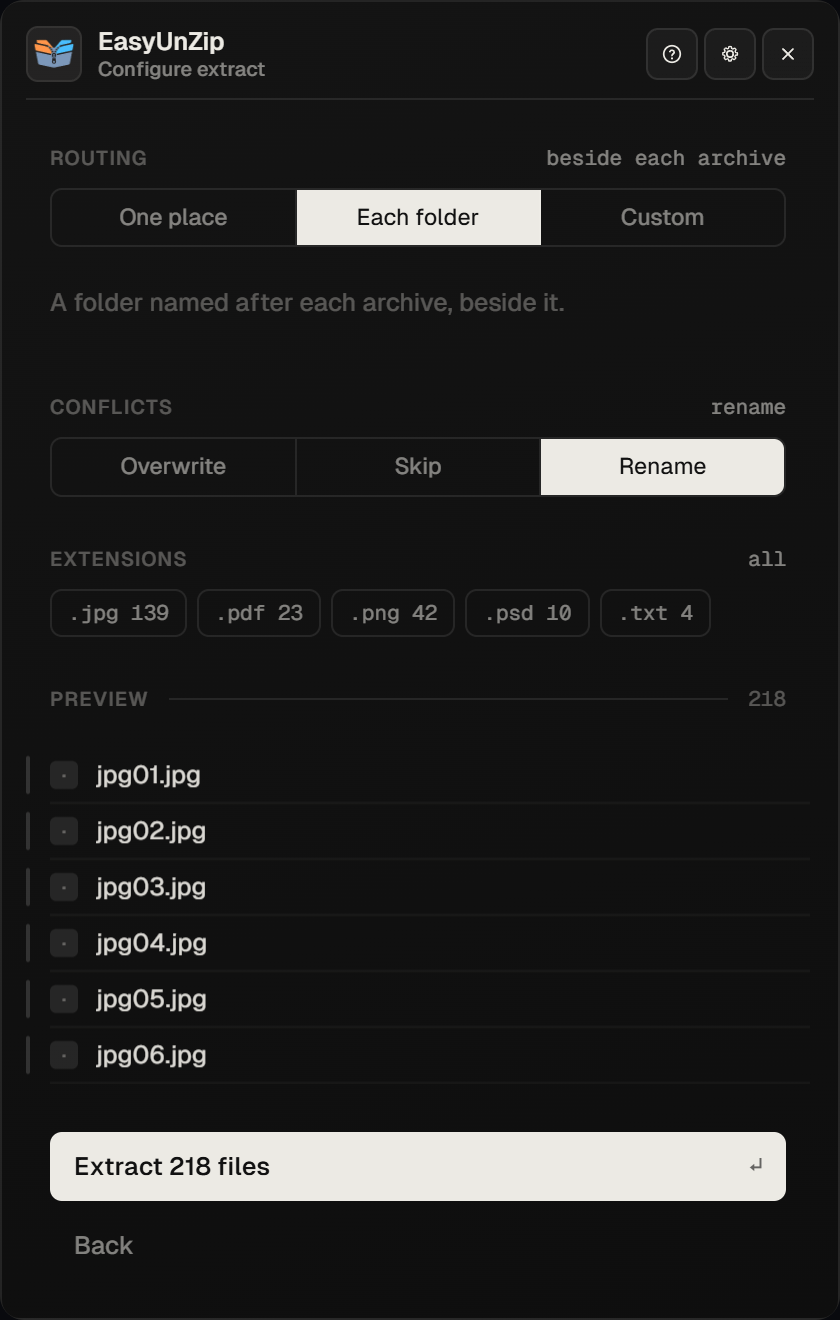
The wizard takes one archive at a time, so twenty archives mean twenty passes and twenty chances to click past the box. With EasyUnZip installed, select them all, press Alt+E, and set one rule for the job: one folder, a named subfolder each, or a path per archive.
Why loose files happen
Whoever made the archive decided whether it contains a folder or a pile. Some archives hold one tidy folder; plenty hold forty files at the top level. Extract the second kind where it sits and those forty files join everything else already there, with nothing marking which arrived together.
Extracting into a subfolder named after the archive makes both kinds behave the same way, which is why it is worth doing even when you think the archive is tidy. It is what the wizard proposes; the mistake is overriding it without meaning to.
Fix the folder archives arrive in, too
Your browser's saved-download folder is a useful first place to look. If you want future archives to arrive elsewhere, open Downloads in your browser's Settings:
- Edge - change the download location or review its per-download prompt options.
- Chrome - change the location or enable the option to ask where to save each file before downloading.
Asking each time sounds like friction and removes a tidying job later, because the decision happens when you still know what the file is for.
Taking only part of an archive
Sometimes the destination is not the problem - the contents are. EasyUnZip reads the archive first and lists the file types inside it with a count for each, so you can take the .jpg files out of an archive holding four hundred RAW files beside them. The rest are never written to disk at all, which is faster than extracting everything and deleting. The filter guide covers the free ways to do this as well.
Before extracting into an existing folder
Check the conflict setting, especially if you have edited files from an earlier extraction. The guide to extracting without overwriting explains when to choose a fresh folder, what Skip and Rename do, and why a repeated extraction needs care.
A note on very long paths
Extracting a deeply nested archive into an already deep folder can produce paths past the limit Windows historically enforced, and the extraction fails part-way with a name nobody can read. EasyUnZip handles this without being asked - it uses the extended path form and repairs names Windows will not accept. If you are using something else and hit it, extracting nearer the root of the drive is the usual workaround.
Checked on 18 September 2026 against Windows 11 24H2's Extract Compressed (Zipped) Folders wizard, and against EasyUnZip 0.1.1's destination and conflict-policy tests. The shipped options are one destination, one named subfolder per archive, or a custom path per archive, with overwrite, skip or keep both applied to the whole job.
Common questions
Where do extracted files go by default on Windows?
Into a new folder beside the archive, named after it. Extract All pre-fills that path, so an archive sitting in Downloads produces a folder in Downloads unless you change the box. Dragging files out of an opened archive is different - those go wherever you drop them, which is usually how loose files appear.
Can I change the default extraction folder permanently?
No. Windows has no setting for it: the wizard always proposes the archive's own folder and there is nothing to change. What you can change is where archives land in the first place - your browser's download folder - and what your extraction tool remembers. EasyUnZip keeps the destination you last chose.
Why did my files end up loose in Downloads instead of in a folder?
Two ways. Either the archive was opened rather than extracted and the files were dragged out, or the destination box was edited to the parent folder at some point and the wizard kept the shape. Whoever built the archive also decides: some hold one tidy folder, plenty hold forty files at the top level.
How do I extract to a different drive?
Use Browse in the wizard and pick the folder on the other drive, or type the full path such as D:\Projects\Assets into the box. Check that the drive is connected, has enough space and lets you write to that folder. Extraction writes new files and leaves the original archive in place.
Can I send different archives to different folders in one go?
Not with File Explorer, and not with 7-Zip's Extract to menu - both apply one destination to whatever is selected. EasyUnZip's custom mode sets a path per archive in one panel, which is the case that otherwise means one run per destination.
What happens if a file of the same name is already there?
Windows may ask whether to replace or skip existing files. Read that choice before continuing, especially if the destination already holds work you need. Extract into a new folder to avoid replacing those files, or choose EasyUnZip's keep-both policy when you want to retain both copies.