
Extract RAR files on Windows 11
How to extract RAR files on Windows 11
Start by checking whether you need anything at all - recent Windows 11 opens RAR on its own. If it does not, or the archive has a password, here is what works.
Check whether Windows can already do it
Right-click the .rar file and look for Extract All. Updated Windows 11 can extract unencrypted RAR files in File Explorer, including 22H2 and 23H2 with the October 2023 archive-support update. Choose a destination and extract.
Find your Windows version if Extract All is missing
Open Settings, then System, then About, and read Version under Windows specifications, including the OS build. Version 23H2 alone does not mean RAR is unsupported: KB5031455 documents native RAR support on 22H2 and 23H2. Check Windows Update or use a separate archive tool if Extract All is unavailable. Windows 10 File Explorer does not have native RAR support.
Use a tool that reads RAR
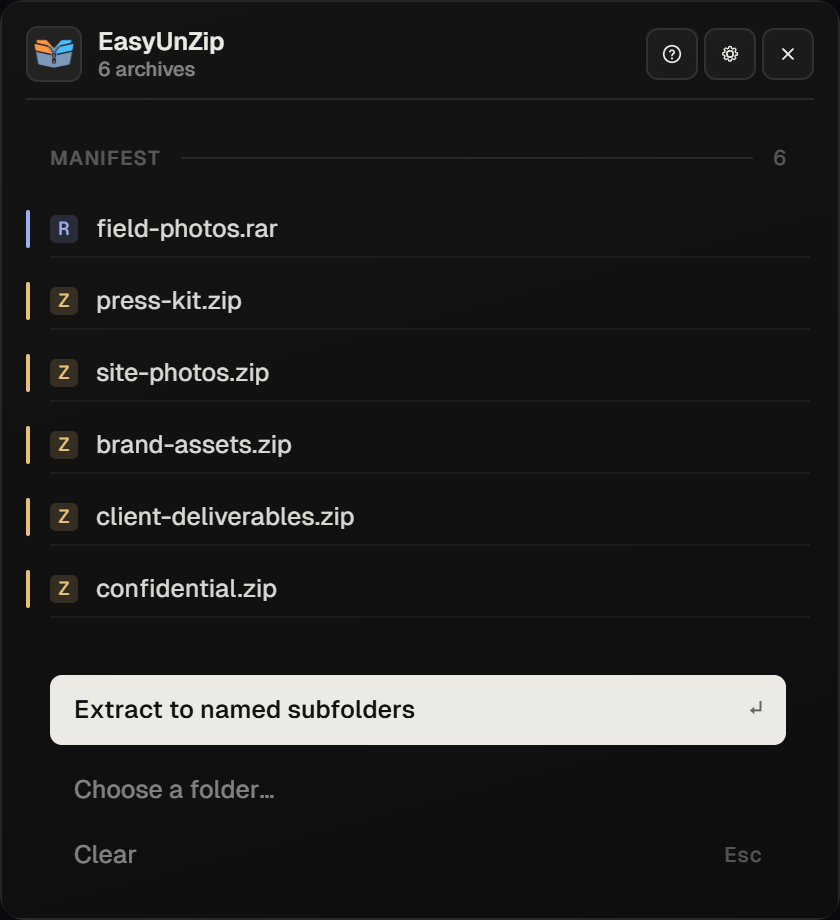
EasyUnZip, 7-Zip and WinRAR all extract RAR on Windows 10 and 11. With EasyUnZip: select the .rar files in File Explorer, press Alt+E, choose where the files should land, and the panel extracts them and closes itself.
Handle a password-protected RAR
File Explorer will not open encrypted archives - Microsoft say so and point you at separate software. EasyUnZip asks for the password once, holds it in memory for the session, and never writes it to disk. There is no way to open one without the password; anything claiming otherwise is not telling the truth.
Why the .rar will not open
RAR is a proprietary format. For most of Windows' history nothing in the operating system could read it, which is why "download something to open RAR" became a routine part of using a PC. Microsoft documents native RAR, 7z and several TAR formats for Windows 11 22H2 and 23H2 in theOctober 2023 KB5031455 update. Native RAR support is also available in 24H2.
Windows 10 File Explorer does not have native RAR support. Microsoft's currentWindows 11 archive guidancealso says encrypted archives need a separate app.
When a separate tool is still worth it
If a RAR turns up twice a year, use Explorer or install 7-Zip and be done. A tool earns its place when the archives arrive in quantity: twenty of them each wanting their own folder, a set with passwords, one made on a Mac whose paths Windows refuses.
That is what EasyUnZip is for - the feature list is here and the honest comparison with 7-Zip says plainly where 7-Zip is the better answer. If you only need photographs or documents,extract selected file types from a RAR instead of unpacking everything.
When the RAR arrives in parts
Large RAR sets are split into volumes - set.part1.rar,set.part2.rar, and so on. They are one archive written across several files, not several archives, and that changes what you do with them:
- Put every part in the same folder before you start. A part still in the browser's download list is a part that is not there.
- Open only the first one. The tool reads the rest by itself. There is nothing to do with parts two and three, and nothing to join together first.
- Never open a middle volume. The headers describing the set live in part one, so starting at part two fails with a headers error and writes damaged files - we tried it.
A missing part is the case worth knowing about. Removing the third of three volumes from a test set still produced all three payload files, one of them truncated, alongside a Missing volume error. Nothing about the destination folder looked wrong. Read the report rather than counting the files.
What none of them can do
- Open an encrypted RAR without the password. The contents are genuinely encrypted; there is nothing to work around.
- Recover a corrupted archive in full. WinRAR can repair some damage; EasyUnZip cannot, and lists the archive as failed in the report. Partly written files are left where they landed rather than deleted, so a failed item can leave something on disk that opens and is wrong.
- Turn a RAR into a ZIP by extracting it. You get the files, not another archive.
Multi-volume behaviour checked on 18 September 2026 against 7-Zip 25.01 - the same engine EasyUnZip runs - using a three-volume set built with WinRAR's Rar.exe. Opening part one returned all four files cleanly; opening part two returned a headers error; deleting part three produced the truncated file and the Missing volume error described above.
Windows compatibility documentation re-checked on 7 October 2026 against Microsoft's KB5031455 and current ZIP and unzip guidance. This was a documentation review, not a new Windows device test.
Common questions
Can Windows 11 open RAR files without installing anything?
Yes, for unencrypted RAR files on updated Windows 11. Microsoft documents native RAR support for 22H2 and 23H2 in October 2023's KB5031455; 24H2 supports it too. Check for Extract All rather than assuming an older version cannot do it. Encrypted archives need a separate tool.
How do I know which Windows version I am on?
Open Settings, then System, then About, and read Version under Windows specifications, and note the OS build as well as Version. Installed updates matter on 22H2 and 23H2. The faster practical check is to right-click an unencrypted .rar and look for Extract All.
How do I extract a multi-part RAR - part1, part2, part3?
Keep every part in one folder and open the first one, the file ending .part1.rar. The tool reads the rest automatically; you never open the others yourself. Pointing a tool at a middle volume fails with a headers error, because the information describing the set lives in the first part.
What if one part of a multi-part RAR is missing?
You get what the parts you have can produce, and a file that straddles the gap comes out damaged rather than absent. We tested it: removing the third of three volumes still wrote all three payload files to disk, one of them truncated, with the error Missing volume in the output. Check the report, not the folder.
Is 7-Zip or WinRAR better for RAR files?
7-Zip extracts RAR, costs nothing and never nags. WinRAR creates RAR archives, which 7-Zip cannot, and can repair some damaged ones. If you only ever open RAR files, 7-Zip is the better answer and the licence is simpler.
Why does my RAR ask for a password I was never given?
Because whoever made it encrypted it. There is no way around that - the contents are genuinely encrypted, and a site promising to open one without the password is either selling a brute-force tool that will not work or is not what it claims. Ask the sender.