
Extract selected file types
How to extract selected file types from ZIP or RAR
When an archive holds four hundred files and you need only the photographs or the PDFs, filter before extraction instead of writing everything to disk and cleaning it up afterwards. File Explorer cannot; here is what can.
Install 7-Zip, or use what you already have
File Explorer has no extension filter, so this needs a tool. 7-Zip is free and reads both ZIP and RAR. WinRAR and EasyUnZip do the same job; the commands below are 7-Zip's because it costs nothing.
Open Command Prompt in the folder holding the archive
In File Explorer, click the address bar, type cmd and press Enter. The commands below use Command Prompt and assume 7z.exe is on PATH. If Windows cannot find 7z, replace it with the quoted full path, usually "C:\Program Files\7-Zip\7z.exe".
Extract one type, keeping the folder structure
Run 7z x archive.zip -oExtracted -r *.jpg. The x keeps the archive's folders, -r reaches into them, and the pattern is matched without case differences - so a file saved as TWO.JPG comes out of a search for *.jpg.
Or flatten everything into one folder
Swap x for e: 7z e archive.zip -oExtracted -r *.jpg. Every match lands directly in the destination with no folders at all, which is what you want for photographs and what you do not want when two folders hold a file of the same name.
Add the other types you want in the same run
Patterns stack: 7z x archive.zip -oExtracted -r *.jpg *.png *.pdf pulls all three in one pass. Everything unmatched stays inside the archive and is never written.
The commands, and what each one leaves you with
Run these examples in Command Prompt (cmd.exe). If 7z.exe is not on PATH, replace each 7z with"C:\Program Files\7-Zip\7z.exe", or your actual installation path. These short examples assume the archive is called archive.zip in the current folder; replace that name and quote it if it contains spaces.
Keep the archive's folder structure, and take only the JPGs:
7z x archive.zip -oExtracted -r *.jpg
Flatten every match into one folder instead:
7z e archive.zip -oExtracted -r *.jpg
Take several types in a single pass:
7z x archive.zip -oExtracted -r *.jpg *.png *.pdf
x and e are the whole difference: xextracts with full paths, e extracts everything into the destination directly. Choose e for a folder of photographs; choose x when two folders in the archive might hold a file of the same name, because flattening creates a name collision. Read any overwrite prompt before continuing; choosing to overwrite can discard an earlier extracted copy.
The three ways compared
| Method | Writes the whole archive first | Reads RAR | Needs the terminal |
|---|---|---|---|
| File Explorer, by hand | No | Yes, on updated Windows 11 | No |
| Expand-Archive, then select | Yes | No | Yes |
| 7-Zip | No | Yes | Yes |
| EasyUnZip | No | Yes | No |
The first column is the one that matters on a large archive. Expanding a 6 GB archive to keep 200 MB of photographs writes 6 GB to disk before you select anything. A file-type filter avoids that extra work and the risk of a mistaken cleanup command.
What the filter matches
The filter works on the final extension in each archived path. Choosing JPG includes photo.jpg and folders/event/PHOTO.JPG. Choosing PDF includes every PDF in nested folders. The folder structure stays intact in the destination; only the unticked file types are left out.
What the filter does not do
- It does not select one individual filename. EasyUnZip is not an archive browser. Use File Explorer, 7-Zip or WinRAR when you need one named file rather than one file type.
- It does not convert files. Selecting JPG does not turn PNG files into JPG files; it only extracts entries that already have the chosen extension.
- It does not inspect file contents to guess a type. The archived filename is the rule, which keeps the result predictable before extraction starts.
Doing it without the terminal
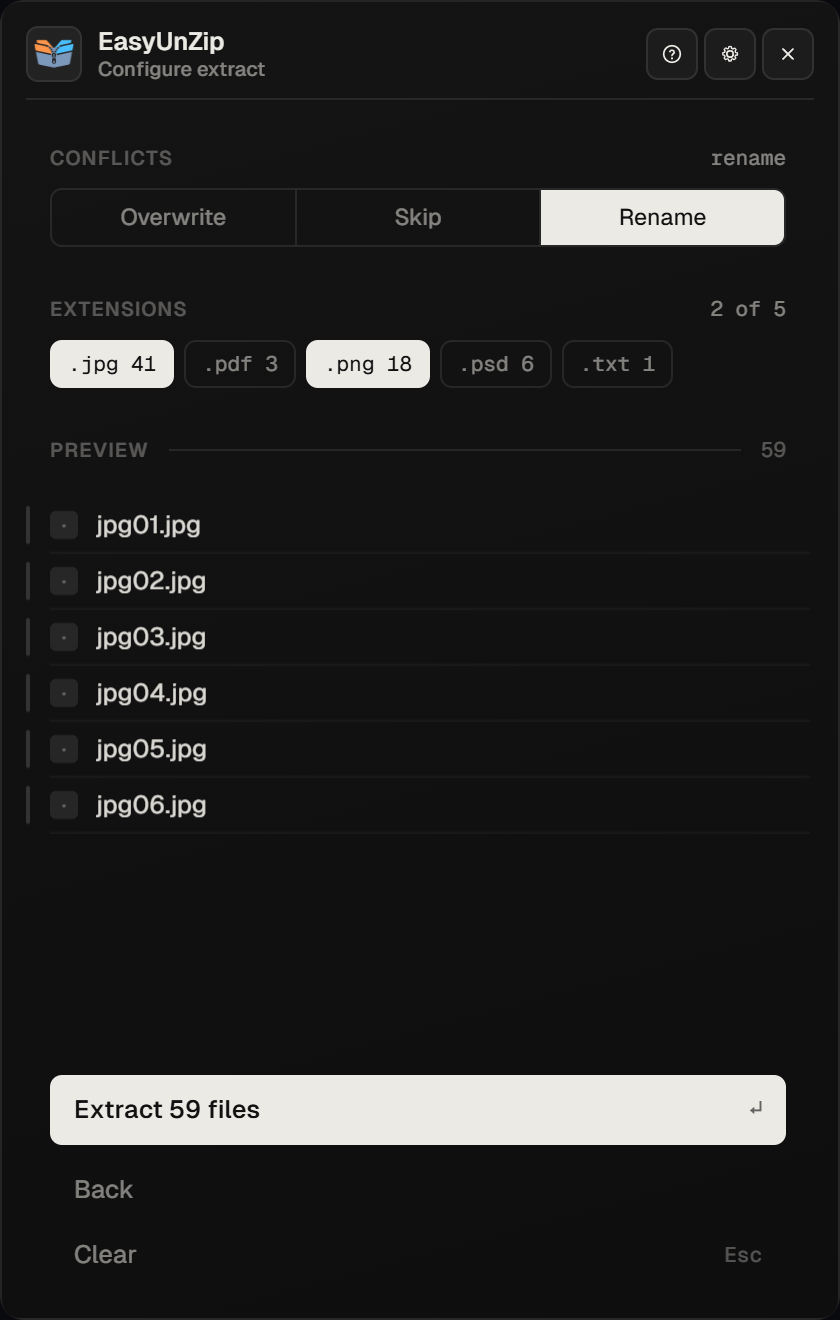
Select the archives in File Explorer and press Alt +E. EasyUnZip scans them first, groups the contents by extension with a count beside each type, and extracts only what you tick. The same choice applies to every archive in the selection, which is the part the 7-Zip commands above need a loop for -the batch guide has that loopif you would rather script it. Free for 14 days.
PowerShell guidance reviewed on 7 October 2026 against Microsoft'sExpand-Archive documentation. The previous recursive deletion example was removed to avoid risking unrelated files in an existing destination.
Commands checked on 18 September 2026 with 7-Zip 25.01 and Windows PowerShell 5.1, against a test archive holding five files across two nested folders, one of them saved as TWO.JPG to confirm the case-insensitive match described above. Both 7-Zip forms returned the two JPGs and nothing else.
EasyUnZip behaviour checked against 0.1.1's case-insensitive extension filtering and nested-path extraction tests. EasyUnZip supports ZIP and RAR only.
Common questions
Can File Explorer extract only certain file types?
Not by type. You can open the ZIP, sort the contents by the Type column, select the rows you want and drag them out, which works for a flat archive of twenty files and falls apart on four hundred spread across nested folders - Explorer will not sort across folders, so you would repeat it in each one. There is no filter box and no wildcard.
How do I do this with PowerShell instead?
PowerShell's Expand-Archive extracts the whole ZIP; it has no file-type filter. If you use it, choose a new, empty destination, then copy the files you want from there. Avoid recursive cleanup commands on an existing folder: they can delete unrelated files. Use the 7-Zip filter above to extract only the matching files in the first place.
Does the filter match capital letters differently?
No, on Windows. A pattern of *.jpg matches photo.jpg and PHOTO.JPG alike in 7-Zip, in PowerShell's comparison operators and in EasyUnZip, because the filesystem itself does not distinguish them. We checked it against an archive holding both.
Does this work on RAR files too?
Yes with 7-Zip, WinRAR or EasyUnZip - all three read RAR, and the 7-Zip commands above take a .rar in place of the .zip unchanged. PowerShell's Expand-Archive does not: it is ZIP only, so the PowerShell route has no RAR equivalent.
Can I pick one named file rather than a whole type?
With 7-Zip, yes - give the name instead of the pattern. EasyUnZip cannot: it filters by extension and is not an archive browser. For one named file out of one archive, File Explorer opening the ZIP is the shortest route of all.
Is there a way to filter without the command line?
EasyUnZip does it from the panel: it scans the selection first, lists the extensions it found with a count beside each, and extracts only the ones you tick. The same tick applies across a batch of archives, which is the case the 7-Zip commands need a loop for.